In order to export quotes from Multico you must designate
a BRIDGE program to transfer information between the rater and The Agency Advantage.
Set up the bridge by entering Multico and Clicking on Tools. Click on Tools again
and select Integration Setup.
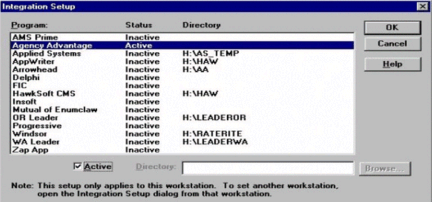
Highlight Agency Advantage and place a check next to Active. Agency Advantage should
show as active under Status now. Click OK and Multico should be ready for exporting.
Now that you have set the bridge up in Multico you can configure Agency Advantage
for the rating software. When you select Policy Wizard for the first time a screen
appears that allows you to select the rating interface. If you are unsure if step
has been performed it is recommended that you check to see if the settings are correct.
To check these settings go to Utilities from your Main Menu in Agency Advantage.
Next choose Set Rating Interface.

Notice that Rater is set to InsurQuote. This identifies InsurQuote as the rating
program. To the right it should show the drive where the software was detected.
It must be set to the drive that your rating program resides. Once you have these
two items set press the save button. One important note, you must check the Set
Rating Interface on each workstation that you plan to utilize the bridge from. The
Set Rating Interface configures each workstation individually not the network as
a whole.
How to Utilize the Bridge Function:
In order to bridge from Multico to Agency Advantage you must have both programs
open at the same time. While in your Agency Advantage start your Multico program.
Now rate a quote as you normally would in Multico. Next pick the company that you
would like to use in the Company Comparison chart and press OK. Click on File and
select Export. An "Export To" window will pop up with Agency Advantage in it. Highlight
Agency Advantage and Click OK. A window titled "Select Company to Export" will now
appear. Make sure you select the correct company and press OK. The quote should
now be exported. Click on the Agency Advantage icon on the taskbar. This should
pull the Agency Advantage back up. Choose Import Quote from the toolbar at the top.

If the client name that you attempted to bridge is showing then the quote import
for Multico has been successfully configured.
Trouble Shooting
Q: I am not getting any error message but my quotes are not importing from Multico.
A: Check Rater under Set Rating Interface in Agency Advantage. Multico should be
selected, also make sure that it is set to the correct drive.
Q: When I go to export my quote in Multico the Agency Advantage does not show up
in the "Export To" box.
A: Go to "Integration Setup" under Tools in Utilities. Make sure that Agency Advantage
is set to Active.
See Also:
Importing Quotes
Written by: Cale Parish
Back